

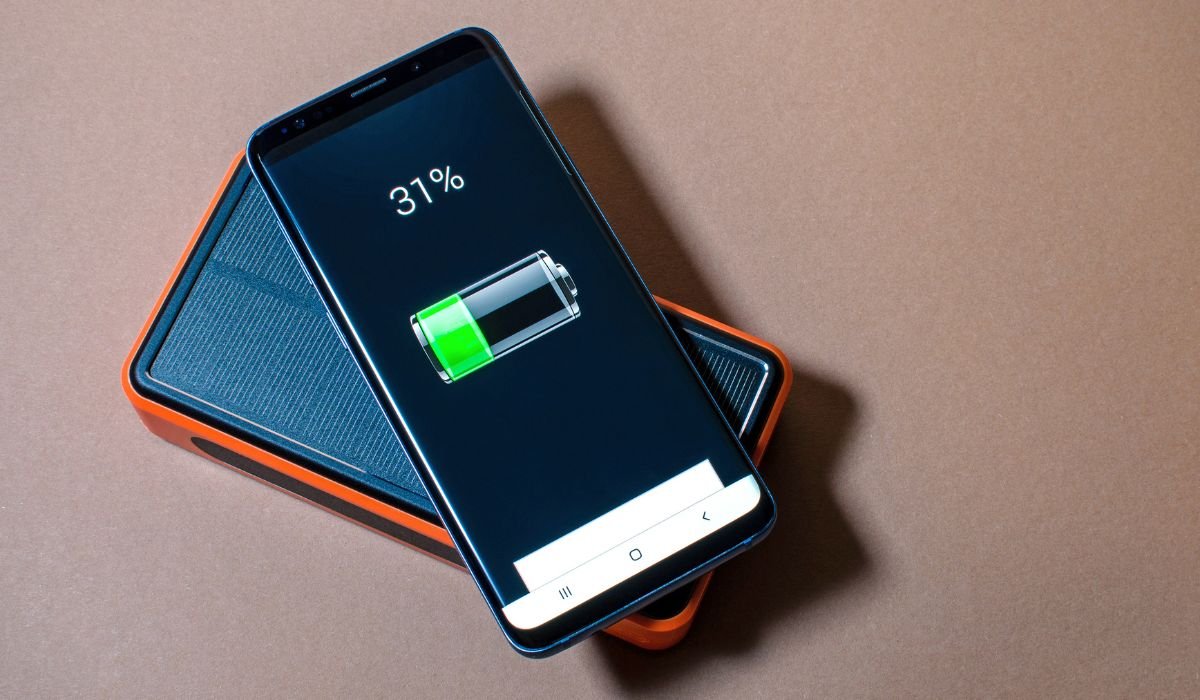
Qi wireless charging has revolutionized the way we power up our Android devices. This convenient technology allows you to charge your phone without the hassle of cables, simply by placing it on a compatible charging pad. In this guide, we’ll walk you through the process of enabling and using Qi charging on your Android device.
Key Takeaways
- Verify your Android device’s Qi charging compatibility
- Obtain a Qi-certified wireless charging pad
- Properly align your phone on the charging pad
- Adjust settings for optimal charging performance
- Troubleshoot common issues for seamless charging
Checking Your Device for Qi Charging Compatibility
Before you start, it’s crucial to confirm that your Android device supports Qi wireless charging. Most modern smartphones, particularly flagship models from major manufacturers, come equipped with this feature. Here’s how to check:
- Consult your device’s manual or specifications
- Visit the manufacturer’s website
- Look for the Qi logo on your device or its packaging
- Check online compatibility lists from reputable sources
Popular Qi-compatible models include the Samsung Galaxy S24 series, Google Pixel 8 series, and OnePlus 12, among many others.
Preparing Your Android Device for Qi Charging
Once you’ve confirmed compatibility, follow these steps to prepare your device:
- Remove any thick or metal cases that might interfere with charging
- Clean the back of your phone to ensure good contact with the charging pad
- Make sure your device has enough battery life to detect the charger
Setting Up Qi Charging
To set up Qi charging:
- Purchase a Qi-certified wireless charging pad
- Connect the charging pad to a power source using the provided cable
- Place the pad on a flat, stable surface
- Ensure the pad is plugged into a power outlet that meets the recommended specifications
Choosing the Right Charging Pad
When selecting a charging pad, consider:
- Charging speed (5W, 10W, 15W, or higher)
- Brand reputation and certification
- Design and form factor
- Additional features like cooling fans or multiple coils
Enabling Qi Charging on Your Android Device
Enabling Qi charging is typically automatic on compatible devices. However, some models may require you to activate it manually:
- Go to “Settings” on your Android device
- Navigate to “Battery” or “Device Care”
- Look for “Wireless charging” or similar options
- Toggle the switch to enable wireless charging if available
For Samsung devices, you can access additional options by going to “Settings” > “Battery and device care” > “Battery” > “More battery settings” and enabling “Fast wireless charging” if desired.
Activating Fast Wireless Charging
Many Android devices support fast wireless charging for quicker power-ups. To activate this feature:
- Access your device’s battery settings
- Look for “Fast wireless charging” or similar options
- Enable this feature if available
- Ensure you’re using a compatible fast wireless charger
Troubleshooting Common Issues
If you encounter problems with Qi charging, try these solutions:
- Realign your phone on the charging pad
- Remove any cases or accessories
- Restart your device
- Check for system updates
- Ensure the charging pad is properly connected and powered
- Try a different charging pad or power adapter
Dealing with Overheating
Wireless charging can sometimes cause devices to heat up. To prevent this:
- Remove your phone case while charging
- Avoid using your device while it’s on the charging pad
- Place the charger in a cool, well-ventilated area
- Use official or certified charging accessories
Tips for Maximizing Qi Charging Efficiency
To get the most out of your Qi charging experience:
- Keep your phone centered on the charging pad
- Avoid using your device while it’s charging wirelessly
- Update your device’s software regularly
- Invest in a high-quality, fast-charging Qi pad
- Consider a multi-device charging pad for convenience
- Keep the charging area clear of metal objects and cards
Update Advancements in Qi Charging
Recent developments in Qi technology include:
- Increased charging speeds (up to 50W for some devices)
- Improved efficiency and reduced heat generation
- Enhanced foreign object detection for safety
- Integration with smart home ecosystems
Frequently Asked Questions (FAQ)
Is my Android phone Qi-enabled?
Most modern Android flagships support Qi charging. Check your phone’s specs, look for the Qi logo, or consult the manufacturer’s website. Popular brands like Samsung, Google, and OnePlus often include this feature in their high-end models.
How do I set up Qi wireless charging?
Purchase a Qi-certified charging pad and connect it to a power source. Remove thick cases from your phone. Place your device on the pad, ensuring proper alignment. Your phone should start charging automatically if it’s Qi-compatible.
How do I enable wireless charging in my phone?
Qi charging is typically enabled by default on compatible devices. If not, go to Settings > Battery or Device Care > Wireless Charging (or similar). Toggle on the wireless charging option. Some phones may require you to enable fast wireless charging separately.
Qi wireless charging setup?
Ensure your phone is Qi-compatible. Buy a Qi-certified charger and plug it in. Remove any thick cases from your phone. Place your device on the charging pad, centering it for optimal charging. Your phone should start charging immediately.
Qi charge?
Qi charging is a wireless charging standard using electromagnetic induction. It allows compatible devices to charge by simply placing them on a Qi-certified charging pad. No cables are needed, making it a convenient way to power up your device.
What is Qi wireless enabled?
Qi wireless enabled refers to devices that support the Qi wireless charging standard. These devices can charge wirelessly when placed on a Qi-certified charging pad. Many modern smartphones, earbuds, and smartwatches are Qi-enabled for convenient cord-free charging.


