

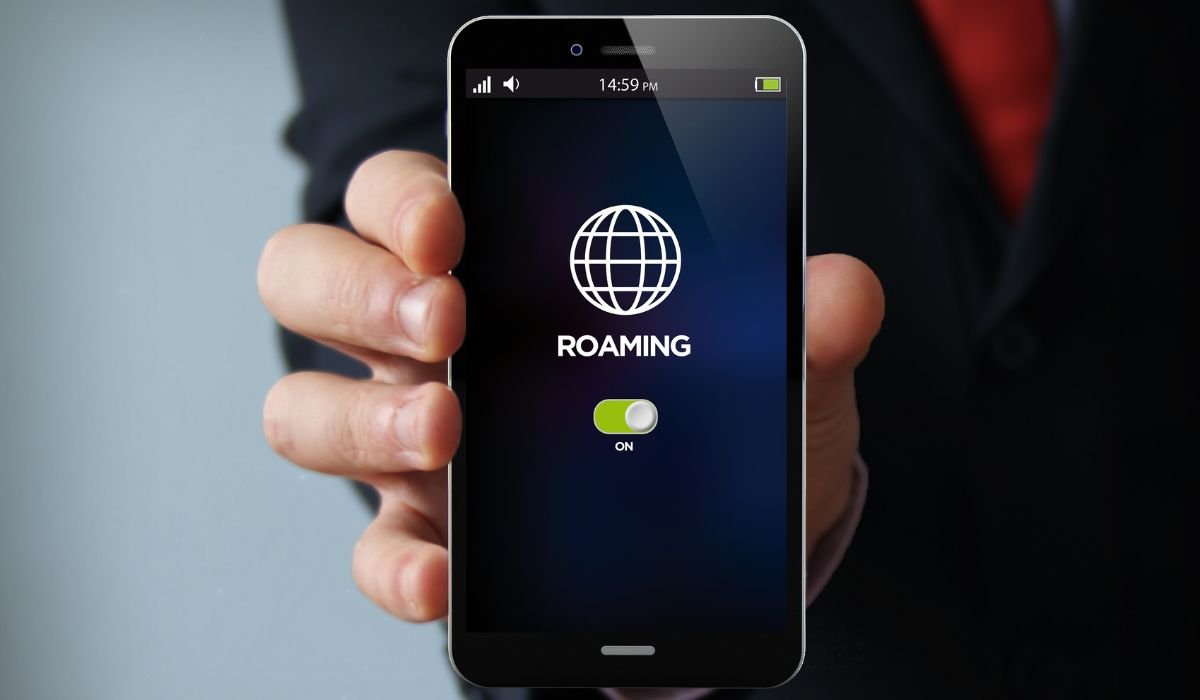
Roaming allows you to use your mobile data services when you’re outside your home network’s coverage area. Whether you’re traveling internationally or visiting areas with limited coverage, knowing how to activate roaming on your Android device is crucial. This guide will walk you through the process, explain the benefits and potential costs, and provide tips for managing your data usage while roaming.
Key Takeaways
- Roaming enables data usage outside your home network
- The process may vary slightly depending on your Android version and device manufacturer
- Always check roaming costs with your carrier before activating
- Use Wi-Fi whenever possible to reduce roaming charges
- Consider purchasing a local SIM card for extended stays abroad
Understanding Roaming on Android
Roaming is a feature that allows your phone to connect to other cellular networks when you’re outside your home network’s coverage area. This is particularly useful when traveling internationally or in areas where your primary carrier doesn’t have strong coverage.
Types of Roaming
- Domestic Roaming: Using your phone within your country but on a different network
- International Roaming: Using your phone in a foreign country
What Roaming Enables
- Making and receiving calls
- Sending and receiving text messages
- Using mobile data for internet access
How to Turn On Roaming on Android
The exact steps may vary slightly depending on your Android version and device manufacturer, but the general process remains similar:
- Open the Settings app on your Android device
- Tap on “Network & Internet” or “Connections”
- Select “Mobile network” or “Cellular networks”
- Look for “Roaming” or “Data roaming”
- Toggle the switch to turn on roaming
Roaming Settings and Options
Modern Android devices offer various roaming-related settings to help you manage your usage and costs:
Preferred Network Type
You can choose which network types to connect to while roaming:
- 5G/4G/3G/2G (Auto connect)
- 4G/3G/2G (Auto connect)
- 3G/2G (Auto connect)
- 2G only
Selecting a slower network type can help conserve battery life and potentially reduce data costs.
Network Selection
Android allows you to manually select a network operator when roaming:
- Go to Settings > Connections > Mobile Networks
- Tap on “Network Operators”
- Choose “Select Manually” to see available networks
This feature is helpful if you know which local carrier offers the best coverage or rates.
Managing Data Usage While Roaming
To avoid unexpected charges, it’s crucial to monitor and control your data usage while roaming:
Set Data Limits
- Go to Settings > Connections > Data Usage
- Tap on “Billing Cycle and Data Warning”
- Set a data warning and limit for your roaming usage
Use Data Saving Mode
Android’s built-in data saver can help reduce your data consumption:
- Go to Settings > Connections > Data Usage
- Tap on “Data Saver” and toggle it on
This feature restricts background data usage and can significantly reduce your roaming data consumption.
Roaming Alternatives
While roaming is convenient, it can be expensive. Consider these alternatives for cost-effective connectivity:
Local SIM Cards
Purchasing a local SIM card can often be cheaper than roaming:
- Buy a SIM card at your destination
- Insert it into your phone
- Follow the activation instructions provided
eSIM Technology
Many newer Android devices support eSIM, which allows you to add a local data plan without a physical SIM card:
- Go to Settings > Connections > SIM Manager
- Tap on “Add eSIM” or “Add mobile plan”
- Follow the prompts to download and activate an eSIM plan
Troubleshooting Roaming Issues
If you’re having trouble connecting while roaming, try these steps:
- Restart your device
- Check if airplane mode is off
- Ensure your APN settings are correct
- Try manually selecting a network
- Contact your home carrier for assistance
Roaming Safety and Security
When using mobile data abroad, keep these security tips in mind:
- Use a VPN to encrypt your data
- Avoid accessing sensitive information on public Wi-Fi
- Keep your device’s software and apps updated
- Enable two-factor authentication for important accounts
Understanding Roaming Charges
Roaming charges can vary significantly depending on your carrier and destination. Always check with your provider before traveling to understand the costs involved:
Common Roaming Fees
- Per-day flat rate for data usage
- Per-MB data charges
- Calling and texting fees
Some carriers offer travel passes or international plans that can provide better value for frequent travelers.
Tips for Efficient Roaming
To make the most of your roaming experience while managing costs:
- Use offline features: Download maps, music, and content before traveling
- Utilize messaging apps: WhatsApp, Telegram, and Signal use data instead of SMS
- Enable data compression: Some browsers like Chrome have data-saving modes
- Update apps on Wi-Fi: Avoid large updates while roaming
- Use local recommendations: Ask locals about reliable Wi-Fi spots
Frequently Asked Questions (FAQ)
How do I activate international roaming?
To activate international roaming, go to Settings > Connections > Mobile Networks and toggle on “Data Roaming.” Contact your carrier beforehand to ensure your plan supports international roaming and to understand associated costs. Some carriers require you to activate this service before traveling.
Why is there no roaming option on my Android phone?
If you can’t find the roaming option, your phone might be locked to your home network, or the setting could be hidden. Check under Settings > Connections > Mobile Networks > [Your SIM]. If still not visible, contact your carrier as they may need to enable it remotely.
Where is international roaming on Android?
International roaming settings are typically found in Settings > Connections > Mobile Networks > Data Roaming. The exact path may vary by device manufacturer. If you can’t locate it, use the search function in your Settings app by typing “roaming” or “international.”
How do I know if my phone is roaming?
Your phone is roaming when you see a “R” icon or your carrier name changes in the status bar. Some phones display “Roaming” or a triangle icon. You can also check in Settings > Connections > Mobile Networks to see if Data Roaming is active.
How to activate roaming?
To activate roaming, navigate to Settings > Connections > Mobile Networks and turn on “Data Roaming.” Ensure your carrier plan supports roaming. For some carriers, you might need to activate roaming through their app or website before your trip.
How do I turn roaming on my phone?
To turn on roaming, go to Settings > Connections (or Network & Internet) > Mobile Networks. Find the “Data Roaming” or “Roaming” option and toggle it on. The exact steps may vary slightly depending on your Android device model and version.


