

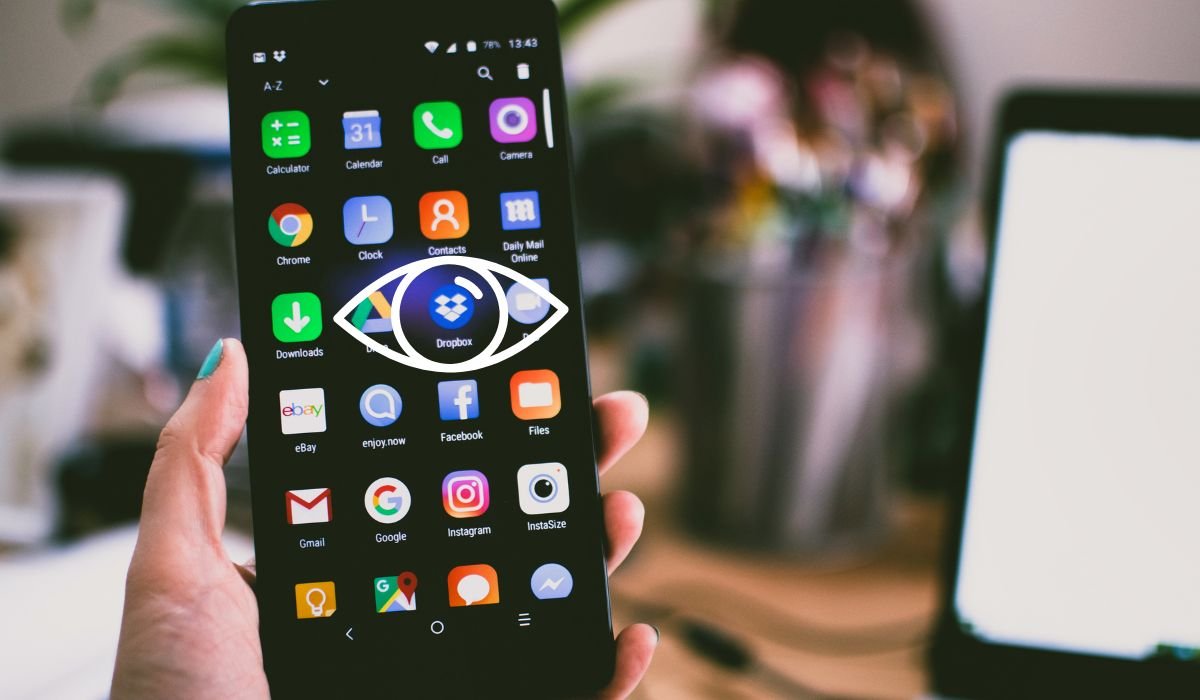
Android devices allow users to customize their experience, including hiding apps for various reasons. However, there may come a time when you need to unhide these apps, and fortunately, there are several methods available to do so.
Hidden apps can be unhidden through various techniques on Android devices. These methods include using the app drawer, accessing the settings menu, and utilizing app lockers. Each approach offers a different way to reveal your hidden applications, ensuring you can regain access when needed.
Key Takeaways
- Hidden apps can be unhidden through various methods on Android devices.
- The process may vary depending on your device manufacturer and Android version.
- Common methods include using the app drawer, settings menu, and third-party app lockers.
- Regular system updates can introduce new features for managing hidden apps.
- Always prioritize your privacy and security when managing hidden apps.
Understanding Hidden Apps
Hidden apps are applications that are installed on your Android device but are not visible in the main app drawer or home screen. This feature is designed to help users organize their device, maintain privacy, or simply declutter their interface.
Reasons for Hidden Apps
People hide apps on their Android devices for various reasons:
- Privacy: To keep sensitive information away from prying eyes.
- Organization: To declutter the app drawer and home screen.
- Parental control: To restrict access to certain apps for children.
- Work-life balance: To separate personal and professional apps.
- Storage management: To keep rarely used apps out of sight.
Methods to Unhide Apps on Different Android Devices
The process of unhiding apps can vary depending on your Android device’s manufacturer and the version of Android you’re running. Here are some common methods to unhide apps:
Method 1: Using the App Drawer
Many Android devices allow you to unhide apps directly from the app drawer:
- Open your app drawer.
- Look for a menu option (often three dots or lines).
- Select “Show hidden apps” or a similar option.
- Choose the apps you want to unhide.
- Confirm your selection.
This method is common on devices from manufacturers like Samsung, LG, and OnePlus.
Method 2: Using the Settings Menu
Some Android devices provide options to manage hidden apps through the settings:
- Open the Settings app.
- Navigate to “Apps” or “Application Manager.”
- Look for a “Hidden apps” or “App visibility” option.
- Toggle the visibility of the apps you want to unhide.
This method is often found on stock Android devices and some custom Android skins.
Method 3: Using Launcher Settings
If you’re using a custom launcher, you might find options to unhide apps within the launcher settings:
- Long-press on an empty space on your home screen.
- Select “Home settings” or “Launcher settings.”
- Look for “Hide apps” or “Hidden apps” option.
- Uncheck the apps you want to unhide.
Popular launchers like Nova Launcher and Action Launcher offer this feature.
Method 4: Using App Lockers
Some users employ third-party app lockers to hide apps. To unhide these apps:
- Open the app locker you’re using.
- Navigate to the list of hidden apps.
- Select the apps you want to unhide.
- Follow the app’s specific instructions to unhide.
Remember to check the app locker’s settings for any additional steps required to fully unhide the apps.
Troubleshooting Tips
If you’re still having trouble unhiding apps, try these troubleshooting steps:
- Restart your device: Sometimes, a simple restart can resolve minor software glitches
- Check for system updates: Ensure your Android OS is up to date
- Clear app cache: Go to Settings > Apps > [App Name] > Storage > Clear Cache
- Contact manufacturer support: If all else fails, reach out to your device manufacturer for assistance
Android App Unhiding Features
As of 2024, Android has introduced some new features to make app management easier:
- Smart App Organizer: This AI-powered feature automatically suggests apps to hide or unhide based on your usage patterns
- Voice Commands: You can now use Google Assistant to hide or unhide apps with simple voice commands
- Quick Settings Toggle: A new Quick Settings tile allows for rapid hiding and unhiding of predefined app groups
- App Timeline: This feature shows when apps were hidden or unhidden, helping users track their app management history
Best Practices for App Management
To avoid confusion with hidden apps in the future, consider these best practices:
- Regularly review your hidden apps list
- Use folders to organize apps instead of hiding them
- Utilize app drawer categories for better organization
- Consider using a launcher with advanced customization options
- Keep track of any parental controls or work profile settings that might affect app visibility
Privacy and Security Considerations
While hiding apps can provide a layer of privacy, it’s important to remember that it’s not a foolproof security measure. For sensitive information:
- Use strong passwords or biometric authentication
- Enable two-factor authentication where possible
- Regularly update your apps and operating system
- Be cautious when granting permissions to apps
- Consider using dedicated security apps for enhanced protection
Frequently Asked Questions (FAQ)
How to unhide hidden apps in Android?
To unhide apps on Android, open your app drawer and look for a “Show hidden apps” option. Alternatively, go to Settings > Apps and find a “Hidden apps” section. Some devices may require you to use the launcher settings or a third-party app locker to reveal hidden apps.
How to bring hidden apps back to home screen?
After unhiding apps, you can add them back to your home screen. Long-press an empty space on the home screen, select “Widgets & Apps,” find the unhidden app, and drag it to your desired location. On some devices, you can also long-press the app in the app drawer and select “Add to Home.”
How do I unhide apps from the App Store?
To unhide apps from the App Store, open the store and tap your profile picture. Go to “Purchased” or “My Purchases,” then find the “Hidden Purchases” section. Locate the app you want to unhide and tap “Unhide.” The app will now appear in your regular purchases list.
How to unhide hidden apps in Redmi?
On Redmi devices, open the Security app and tap “App lock.” Enter your password or use your fingerprint. Tap the menu icon (three dots) and select “Hidden apps.” Choose the apps you want to unhide and tap “Unhide.” The apps will reappear in your app drawer.
How do I unhide apps in Realme?
For Realme devices, go to Settings > Privacy > Hide Apps. Enter your privacy password. You’ll see a list of hidden apps. Uncheck the apps you want to unhide. They will now be visible in your app drawer and can be added back to your home screen.
How to unhide hidden files in Xiaomi?
To unhide files on Xiaomi devices, open the File Manager app. Tap the menu icon and select “Settings.” Enable the “Show hidden files” option. Hidden files and folders will now be visible. To hide them again, simply disable the same option in the File Manager settings.


