

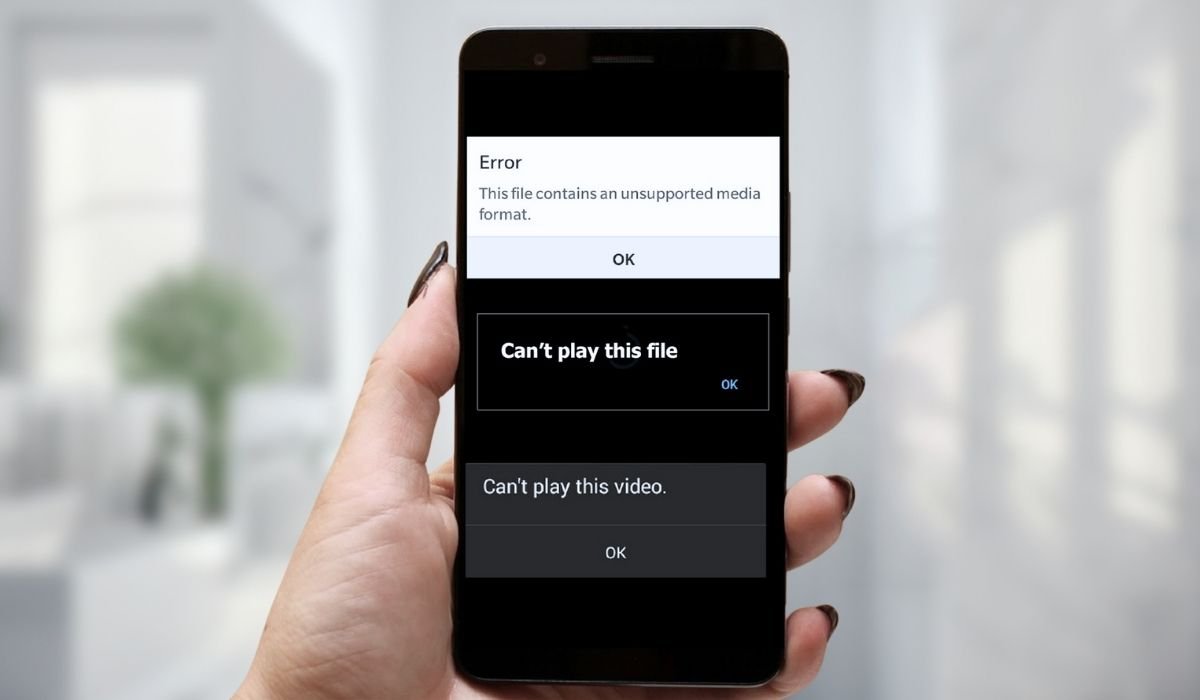
Many Android users encounter frustrating situations where video files refuse to play on their devices. This issue can stem from various factors, ranging from file compatibility to hardware limitations. Understanding these causes and knowing how to address them can help you quickly resume enjoying your favorite videos.
Key Takeaways
- Video playback issues can stem from various causes, including file corruption, incompatible formats, and device-related problems.
- Simple solutions like restarting your device or clearing cache can often resolve playback issues.
- Updating your media player and Android OS can improve compatibility with various video formats.
- Checking video formats and converting files when necessary can ensure smooth playback.
- Proper storage management and SD card maintenance are crucial for uninterrupted video playback.
Common Reasons for Video Playback Issues
Before diving into solutions, it’s crucial to understand the potential causes of video playback problems on Android devices. Here’s a table summarizing the most frequent culprits:
| Cause | Description |
|---|---|
| Corrupted Video Files | Files damaged during recording, downloading, or storage |
| Unsupported Formats | Video codecs or formats incompatible with the device |
| Outdated Media Player | Lack of necessary updates to handle certain video types |
| Insufficient Storage | Limited available space hindering video playback |
| Corrupted Cache Data | Cached information causing playback disruptions |
| SD Card Issues | Problems with external storage affecting video access |
| Outdated Android OS | System bugs impacting video functionality |
Step-by-Step Solutions
1. Restart Your Device
Restarting your Android can clear temporary glitches. Press and hold the power button, then tap “Restart” or “Reboot.” Once your device powers back on, try playing the video again. This simple step often resolves minor software hiccups affecting playback.
2. Clear App Cache
Clearing cache data can fix playback issues. Go to Settings > Apps > Your video player > Storage > Clear Cache. Repeat for other media-related apps. Restart your device and attempt to play the video again. This removes potentially corrupted temporary data.
3. Update Your Media Player
Outdated players may lack support for newer formats. Open Google Play Store, go to “Manage apps & device,” and update your media player. Consider versatile options like VLC or MX Player for broader format support and regular updates.
4. Check Video Format Compatibility
If your device doesn’t support the video format, convert it. Use apps like Video Converter Android or online services to change the format to MP4 or AVI. This ensures your device can read and play the file without issues.
5. Free Up Storage Space
Insufficient storage can hinder playback. Go to Settings > Storage, review space usage, delete unnecessary files, or uninstall unused apps. Aim to keep 10-15% of your device’s storage free for optimal performance. Consider cloud storage for large files.
6. Inspect and Manage SD Card
For SD card-stored videos, eject and reinsert the card. Use a file manager to scan for errors. If problems persist, consider formatting (after backing up). Transfer important videos to internal storage or cloud services to prevent access issues.
7. Update Your Android OS
An outdated OS may contain bugs affecting playback. Go to Settings > System > System update > Check for update. If available, download and install. Restart your device after updating. This ensures you have the latest bug fixes and improvements.
8. Repair Corrupted Videos
For corrupted files, use specialized repair tools like Wondershare Repairit, iMyFone UltraRepair, or Video Repair Tool from Play Store. These can often recover playable versions of damaged videos, though results may vary based on corruption severity.
9. Uninstall Suspicious Apps
Recently installed apps might interfere with playback. Go to Settings > Apps, look for suspicious ones, and uninstall them. Restart your device and check if the issue is resolved. Always download apps from trusted sources to minimize risks.
Additional Tips for Smooth Video Playback
Beyond troubleshooting specific issues, consider these general tips to ensure optimal video playback on your Android device:
- Regularly clean up your device: Use built-in tools or trusted cleaner apps to remove junk files and optimize performance.
- Keep apps updated: Enable auto-updates in the Google Play Store to ensure all your apps, including media players, stay current.
- Use a reliable antivirus: Malware can sometimes cause performance issues, including video playback problems.
- Check your internet connection: For streaming videos, a stable and fast internet connection is crucial.
- Adjust video quality: If streaming, try lowering the video quality to reduce buffering issues.
- Use hardware acceleration: Enable this feature in your media player settings to improve playback performance.
When to Seek Professional Help
If you’ve tried all the above solutions and still can’t play videos on your Android device, it might be time to seek professional assistance. Consider these options:
- Contact the device manufacturer’s support team for specific hardware-related issues.
- Visit an authorized service center if you suspect a hardware problem.
- Consult with a data recovery specialist if you have valuable, irreplaceable videos that won’t play.
Remember, professional help should be a last resort after exhausting all self-help options.
Frequently Asked Questions (FAQ)
Why are videos not playing on my Android phone?
Videos may not play due to various reasons, including corrupted files, unsupported formats, insufficient storage, or outdated media players. Other factors could be device compatibility issues, software glitches, or problems with the video source itself. Troubleshooting steps can help identify and resolve the specific cause.
Why is my video file not playing?
A video file might not play if it’s corrupted, in an unsupported format, or if your media player lacks the necessary codecs. The file could also be incomplete due to interrupted downloads. Check the file’s integrity, try a different media player, or convert the video to a more compatible format.
Why won’t my MP4 play on my Android?
MP4 files not playing on Android could be due to codec incompatibility, file corruption, or device limitations. Ensure your media player is up-to-date and supports the specific MP4 codec. Try playing the file with a versatile player like VLC, or convert it to a different MP4 profile.
Why is the video not playing on the Android phone?
Video playback issues on Android phones can stem from insufficient storage, outdated software, or hardware limitations. Clear your device’s cache, update your media player and Android OS, and ensure you have enough free storage. If problems persist, the video file itself might be corrupted.
Why is the video not playing in the phone’s gallery?
Videos not playing in your phone’s gallery could be due to unsupported formats, file corruption, or gallery app issues. Try clearing the gallery app’s cache or using a third-party media player. If the problem persists, the video file might be damaged or incompatible with your device.
Why is the video not being downloaded on mobile?
Video download issues on mobile can occur due to poor internet connection, insufficient storage space, or download restrictions. Check your network stability, free up device storage, and ensure you have the necessary permissions. Some platforms may also limit mobile downloads, requiring use of their specific apps.


