

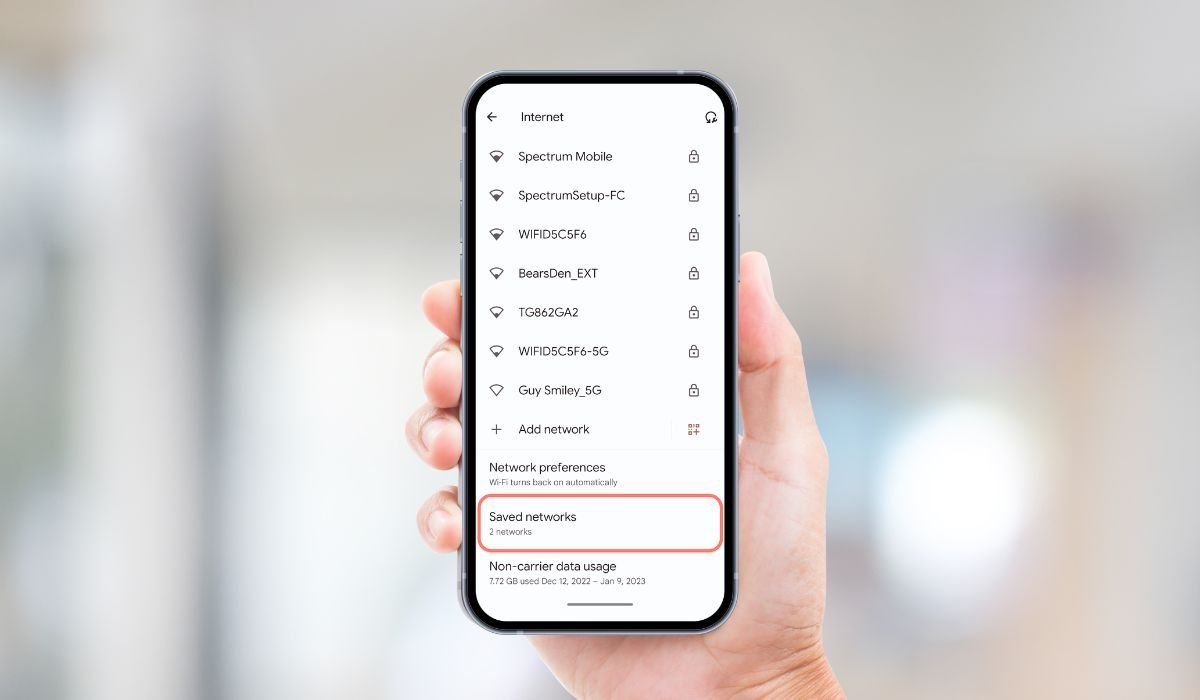
Accessing saved WiFi passwords on your Android device can be crucial when you need to connect other devices or share network access. While some methods require rooting your device or using QR codes, there are several ways to retrieve this information without compromising your device’s security or relying on specific features.
Key Takeaways
- Android 10 and later versions offer built-in options to view saved WiFi passwords
- Router admin panels can provide access to network passwords
- Third-party apps can help recover WiFi passwords without root access
- ADB commands allow tech-savvy users to retrieve network information
- Google account syncing can store and display WiFi credentials across devices
- Physical router labels and documentation often contain default passwords
- Network administrators can provide access information when other methods fail
Understanding Android Versions
Android’s approach to WiFi password management has evolved over the years. In 2024, most devices run on Android 12 or later, with Android 14 being the latest major release. These newer versions offer more user-friendly ways to access saved WiFi passwords compared to their predecessors.
Methods to View Saved WiFi Passwords Without QR Code or Root
1. Using Built-in Android Settings (Android 10+)
For devices running Android 10 or later:
- Open the Settings app
- Tap on “Network & Internet”
- Select “WiFi”
- Tap the gear icon next to your connected network
- Select “Share” or “View Password”
- Verify your identity using your lock screen method
This straightforward approach works on most recent Android devices without any additional tools or root access.
2. Accessing the Router’s Admin Panel
Another method involves logging into your router’s admin panel:
- Connect to the WiFi network
- Open a web browser and enter the router’s IP address (commonly 192.168.0.1 or 192.168.1.1)
- Log in with the admin credentials
- Navigate to the wireless or WiFi settings
- Look for the security or password section
This method works regardless of your Android version but requires knowledge of your router’s login details.
3. Utilizing WiFi Password Recovery Apps
Several apps on the Google Play Store claim to recover WiFi passwords without root access. While their effectiveness can vary, some popular options include:
- WiFi Password Recovery
- WiFi Password Viewer
- Show WiFi Password
These apps often work by leveraging system permissions to access stored network information. Always check reviews and permissions before installing third-party apps.
4. Accessing the wpa_supplicant.conf File
For more tech-savvy users:
- Install a file manager app with root browsing capabilities
- Navigate to /data/misc/wifi/
- Open the wpa_supplicant.conf file
- Look for network entries and their corresponding psk (pre-shared key) values
This method may require root access on some devices, so proceed with caution.
5. Using ADB (Android Debug Bridge)
ADB allows you to interact with your Android device from a computer:
- Enable Developer Options and USB Debugging on your Android device
- Install ADB on your computer
- Connect your device via USB
- Open a command prompt and enter:
- adb shell
- su
- cat /data/misc/wifi/wpa_supplicant.conf
- Look for the network and psk entries
This method requires some technical knowledge but doesn’t necessarily need root access.
6. Google Account Sync
If you’ve enabled WiFi password syncing with your Google account:
- Go to passwords.google.com on a computer
- Sign in to your Google account
- Look for the “Passwords” section
- Search for WiFi network names
This method works across devices and is particularly useful if you’ve changed phones recently.
7. Checking for Passwords on Router Labels
Many routers have default passwords printed on a label:
- Locate your router
- Check for a sticker or label on the device
- Look for “Default Password,” “Network Key,” or similar terms
This method is most useful for home networks that haven’t changed from their default settings.
8. Asking the Network Administrator
For work or school networks:
- Contact your IT department or network administrator
- Explain your need for the WiFi password
- Follow their specific protocols for password retrieval
This approach ensures compliance with organizational security policies.
Troubleshooting Tips Table
| Issue | Solution |
|---|---|
| Can’t find password option in settings | Update your Android version or try an alternative method |
| Router admin panel inaccessible | Double-check the IP address and login credentials |
| Password recovery app not working | Ensure you’ve granted necessary permissions or try a different app |
| ADB commands failing | Verify USB debugging is enabled and drivers are installed correctly |
| Google account sync not showing WiFi passwords | Check if WiFi password syncing is enabled in your Google account settings |
| Can’t read router label | Check the router’s user manual or manufacturer’s website for default credentials |
Future of WiFi Password Management
WiFi password management continues to evolve:
- Increased integration with smart home ecosystems
- Improved biometric authentication for viewing passwords
- Enhanced syncing capabilities across devices and platforms
- Greater emphasis on user privacy and security
Keep an eye out for updates to your Android device that may introduce new, user-friendly ways to manage and view WiFi passwords.
Conclusion
Viewing saved WiFi passwords on Android devices without QR codes or root access is entirely possible using various methods. From built-in Android settings to third-party apps and router admin panels, you have multiple options at your disposal. Choose the method that best suits your technical comfort level and device capabilities.
Remember to prioritize network security and respect the privacy of network owners. As Android continues to evolve, expect even more intuitive ways to manage your WiFi connections and passwords in the future.
By familiarizing yourself with these techniques, you’ll be well-equipped to handle WiFi password retrieval whenever the need arises, ensuring you stay connected in our increasingly digital world.
Frequently Asked Questions (FAQ)
Can I see Wi-Fi password without root?
Yes, you can view Wi-Fi passwords without root on most modern Android devices. For Android 10 and above, go to Settings > Network & Internet > Wi-Fi, tap the network, and select “Share.” On earlier versions, try using your router’s admin panel or Wi-Fi password recovery apps.
How to connect to a Wi-Fi without password and QR code?
Connecting to Wi-Fi without a password or QR code is generally not possible for secured networks. However, some public networks offer open access. For home networks, you can use WPS (Wi-Fi Protected Setup) if your router supports it, allowing connection by pressing a button on the router.
How to see saved Wi-Fi password?
To view saved Wi-Fi passwords on Android 10+, go to Settings > Network & Internet > Wi-Fi, tap the network, and choose “Share.” The password will be displayed after you verify your identity. For older versions, use your router’s admin panel or third-party apps designed for password recovery.
WiFi connect without password and QR code?
Connecting to Wi-Fi without a password or QR code is limited to open networks or those using WPS. For secured networks, you’ll need the password. Some public spaces offer free Wi-Fi that connects automatically. Always be cautious when connecting to unsecured networks to protect your data.
Which app can connect wifi without password?
No legitimate app can connect to password-protected Wi-Fi networks without the actual password. Apps claiming this functionality are likely misleading or potentially harmful. Instead, look for apps that help you find open public Wi-Fi networks or those that store and manage your known Wi-Fi passwords securely.
Can QR code be used without WiFi?
Yes, QR codes can be used without Wi-Fi. They store information that can be read by smartphone cameras, regardless of internet connectivity. While some QR codes might lead to websites needing internet access, many can provide offline information like contact details, plain text, or trigger specific phone actions.


