

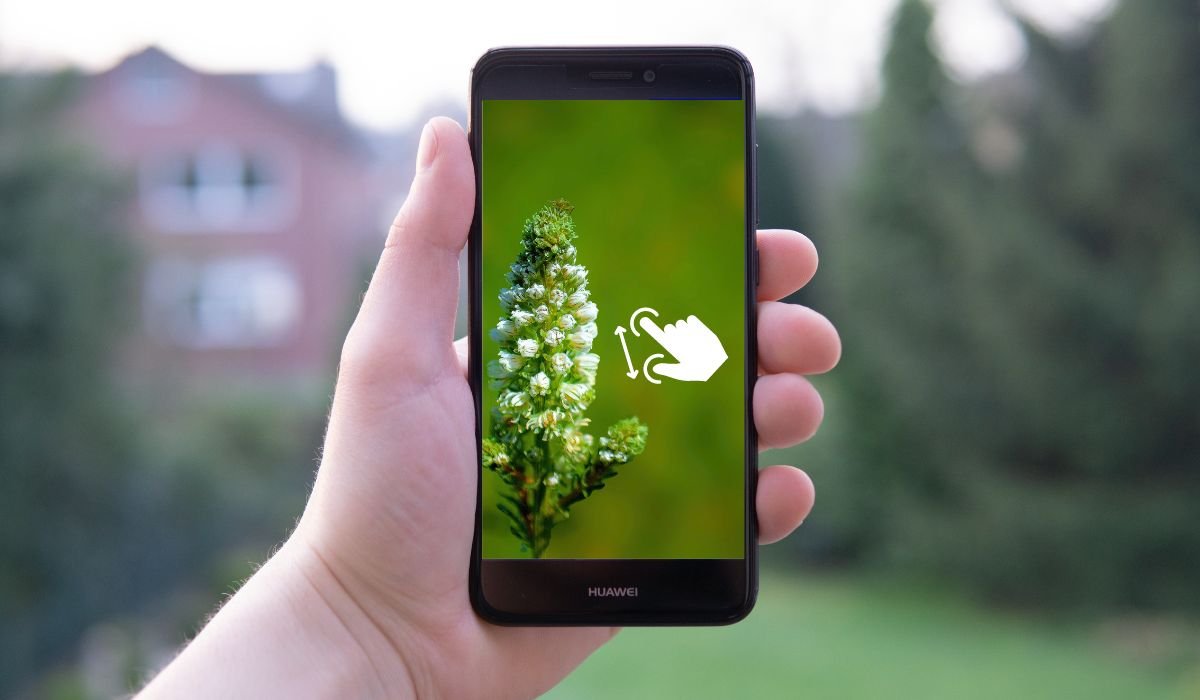
Zooming in on Android can make everyday tasks much easier. Whether you’re reading small text, exploring maps, or viewing photos, zooming helps you see more details clearly. It’s especially useful for those who have trouble seeing small elements on their screen.
Android devices come equipped with several zooming options. These options enhance accessibility and give users more control over how they view content. From simple gestures to built-in accessibility tools, there are many ways to adjust your view.
In this article, we’ll explore different methods you can use to zoom in on your Android device for a smoother, more accessible experience.
Using Pinch-to-Zoom Gesture
The pinch-to-zoom gesture is one of the simplest and most intuitive ways to zoom in on Android. To use it, place two fingers on the screen and spread them apart to zoom in. To zoom out, pinch your fingers back together. This gesture works across various apps, making it highly versatile.
You’ll often use pinch-to-zoom when browsing through images in media galleries, reading content on web pages, or viewing posts on social media apps. It’s a fast and convenient way to get a closer look at the details you need.
For quick, on-the-go zooming, this method is the go-to choice. It doesn’t require any special settings, making it ideal for anyone who needs to zoom in quickly.
Zooming in with Accessibility Features
For users who need more control over zooming, Android offers powerful Accessibility features like Magnification Gestures. To enable this, head to Settings > Accessibility > Magnification. Once activated, you can triple-tap the screen to zoom in on any part of the display.
While zoomed in, you can pan around by dragging two fingers across the screen. You can also zoom in or out by pinching with two fingers or using the magnification controls that appear. This feature allows users to adjust the zoom level for a more comfortable viewing experience.
For even easier access, there’s the Magnification Shortcut. You can activate this by going to the Magnification settings and toggling the shortcut on. Once set, a shortcut icon will appear on the screen. Tapping it will quickly enable magnification, offering a faster way to zoom without navigating through settings each time.
Zooming in on Photos and Videos
In media apps like Google Photos and YouTube, zooming is as easy as using the pinch-to-zoom gesture. For photos, just place two fingers on the image and spread them apart to zoom in. On YouTube, you can zoom in on videos by pinching the screen during playback, perfect for focusing on specific details.
Zooming in on Google Maps
When using Google Maps, zooming in and out is simple with the two-finger swipe gesture. Place two fingers on the map and swipe apart to zoom in, or pinch them together to zoom out. For one-handed zooming, double-tap the screen and then drag up to zoom in, or drag down to zoom out. This makes navigation easier when you only have one hand free.
Zooming in on Text (Browser/Document)
In apps like Chrome and Google Docs, zooming is just as handy. Use the pinch-to-zoom gesture to zoom in on text in web pages or documents. For easier reading, Chrome also offers a text zoom setting. You can adjust the font size by going to Settings > Accessibility and moving the slider to increase text size, making reading more comfortable without distorting the layout.
Third-Party Apps for Zooming
If you need more zooming capabilities beyond what Android offers by default, third-party apps can provide additional features. These apps are particularly useful for tasks that require a closer look or improved accessibility.
Magnifier apps, like Magnifying Glass + Flashlight, allow users to zoom in on small objects or text with ease. These apps are designed for close-up viewing, making them ideal for reading fine print or inspecting details in everyday objects.
There are also apps specifically designed for accessibility, such as BigMagnify. These apps not only enhance zoom features but also offer customizable settings for users with visual impairments. They often include filters, contrast adjustments, and brightness control, helping users see more clearly in various environments.
These apps are helpful when the built-in zoom options are not enough or when you need more specific control over how you zoom and view content.
Device-Specific Zoom Features
Certain Android brands like Samsung, OnePlus, and Google Pixel come with unique zooming features tailored to enhance the user experience.
For instance, Samsung devices offer an additional feature called One-handed mode, which lets users resize the screen for easier zooming and interaction with a single hand. Additionally, Samsung’s Edge Panel can quickly access apps like the magnifier, making zoom tools more accessible.
OnePlus devices may include gesture shortcuts that make zooming faster and more intuitive, along with display scaling options that let users adjust the overall screen size for better readability.
Google Pixel phones also come with enhanced accessibility features like Zoom display size, which not only zooms text but also enlarges icons and UI elements for easier navigation.
These manufacturer-specific enhancements provide extra control and convenience, making zooming more adaptable to individual preferences and needs.
Zooming in on Camera
When using the camera app on Android, zooming is simple. Most devices allow you to pinch the screen to zoom in and out while taking photos or recording videos. For a more precise approach, many camera apps also have an on-screen zoom slider for easy control.
There are two types of zoom available on Android cameras: digital zoom and optical zoom.
- Digital zoom works by enlarging the image digitally, which can result in a loss of quality as the zoom increases. It’s best to avoid heavy digital zoom unless necessary, as images can become pixelated.
- Optical zoom, on the other hand, uses the camera’s hardware (lenses) to zoom in without losing image quality. Phones with multiple lenses, like Samsung Galaxy or Google Pixel models, often switch to a telephoto lens for optical zoom, providing a clearer, sharper image.
For better zoom quality, it’s always recommended to use optical zoom whenever possible. If you’re using digital zoom, try not to zoom in too far to maintain a higher image resolution.
Troubleshooting Common Zooming Issues
Sometimes, users might encounter issues where zooming doesn’t work in certain apps. This can happen due to a few common reasons, but there are simple ways to troubleshoot these problems.
First, check if the app you’re using supports zooming. Some apps may have limited zoom functionality or none at all. If zoom isn’t working where it usually does, start by checking the app’s settings. Some apps might have zoom features turned off by default.
Next, ensure that the necessary permissions are granted. For example, if you’re using accessibility features like magnification gestures, make sure those settings are enabled under Settings > Accessibility.
If the problem persists, it could be due to an outdated app or device software. Try updating the app or your Android device to the latest version to resolve any bugs that may be affecting zoom functionality.
Lastly, restart your device, as this can often fix minor glitches that may prevent zoom features from working properly.
Conclusion
In summary, Android offers multiple ways to zoom, whether you’re using the pinch-to-zoom gesture for quick access in media apps or leveraging the powerful accessibility features like magnification gestures and shortcuts. You can also zoom in on specific apps like Google Photos, YouTube, and Google Maps, or even enhance your experience with third-party apps for more advanced zooming capabilities.
For camera zoom, using optical zoom is ideal for maintaining image quality, while digital zoom can be helpful in a pinch. If you encounter any issues, troubleshooting steps like checking settings or updating your device can often solve the problem.
Take the time to explore these zooming options on your Android device to improve both accessibility and usability, ensuring you get the best viewing experience possible.
FAQs
How do I zoom in on my Android screen?
You can use the pinch-to-zoom gesture by placing two fingers on the screen and spreading them apart. Alternatively, enable magnification gestures in Settings > Accessibility > Magnification for more control.
Why can’t I zoom in on certain apps?
Some apps may not support zooming. Check the app’s settings, make sure zoom features are enabled, or try updating the app or your device if zoom isn’t working as expected.
What’s the difference between digital and optical zoom on Android?
Digital zoom enlarges the image digitally, which can reduce quality, while optical zoom uses the camera’s lens for clearer zoom without sacrificing image quality.
Can I zoom in on text in a browser on Android?
Yes, you can use the pinch-to-zoom gesture in browsers like Chrome, or adjust text size through Settings > Accessibility for a more comfortable reading experience.
How do I enable magnification gestures on Android?
Go to Settings > Accessibility > Magnification, and toggle on magnification gestures. You can then triple-tap the screen to zoom in or use the magnification shortcut for quick access.
Are there any third-party apps for zooming on Android?
Yes, apps like Magnifying Glass + Flashlight and BigMagnify offer additional zooming features, which can be helpful for close-up viewing or enhanced accessibility.


