

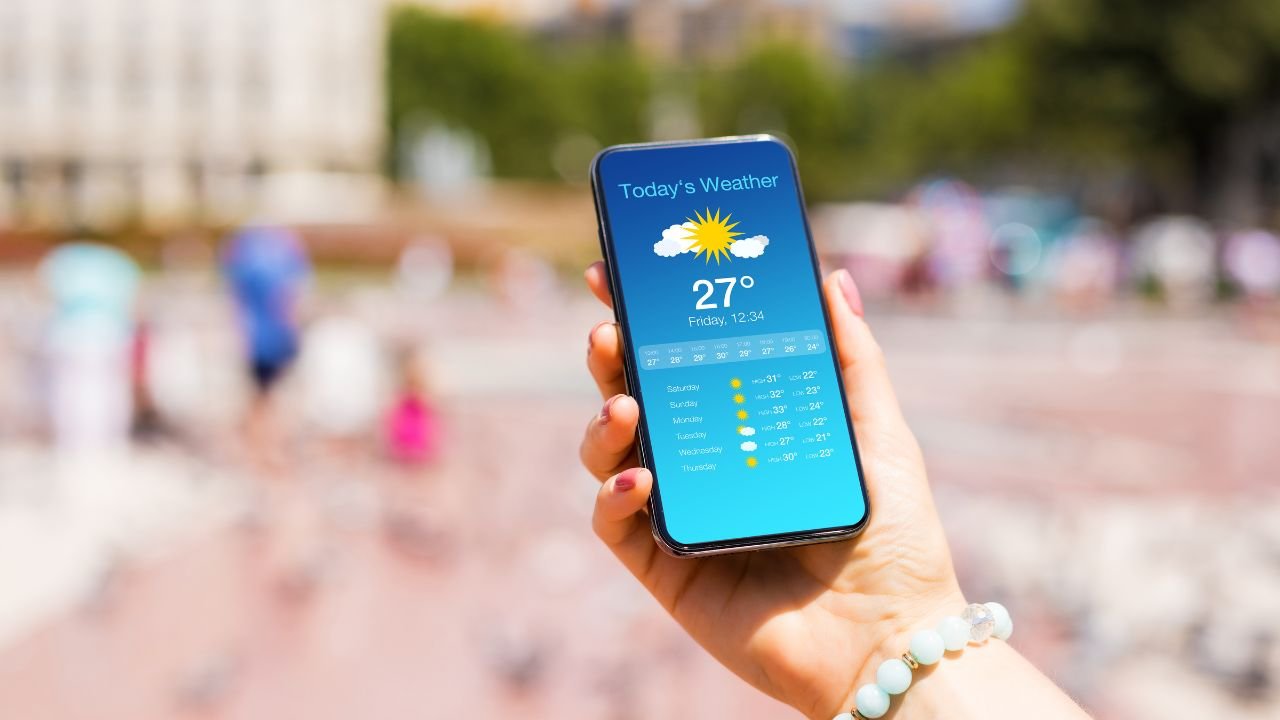
Having accurate weather updates on your Android device is essential for planning your day. Whether it’s checking for rain or tracking temperature changes, staying informed helps you make smarter decisions.
Managing cities on your weather app ensures that the information you see is always relevant. It keeps the interface clean and easy to navigate, avoiding unnecessary clutter.
If you’ve added cities you no longer need, it’s time to remove them. This guide will show you how to delete unwanted locations and keep your weather app focused on what matters most.
Why You Might Want to Remove a City
There are several reasons you might want to remove a city from your weather app. Perhaps it’s an outdated location you no longer visit, or it’s simply irrelevant to your daily life.
Managing your city list can make the app’s interface cleaner and more streamlined. With fewer cities, you get faster updates and avoid scrolling through unnecessary information.
Keeping your weather data relevant ensures that the app provides you with accurate, timely information. This helps you stay focused on the weather where it matters most, without any distractions.
General Steps to Remove a City from Android Weather Apps
The process for removing a city from your Android weather app may vary slightly depending on the version of Android and the app you’re using. However, the basic steps are generally the same across most apps.
Start by opening your weather app. Once inside, you’ll need to access the city list, which is typically found in a menu or dropdown option.
Next, scroll through the list to find the city you want to remove. Once you’ve located it, select the ‘Delete’ or ‘Remove’ option, usually represented by an icon next to the city name.
These simple steps will help you keep your weather app clean and focused on the locations that matter to you.
Also read: Step-by-Step Guide to Update Your Android OS
Step-by-Step Guide for Popular Weather Apps
Here’s a step-by-step guide for removing cities from some of the most popular weather apps:
Google Weather:
- Open Google Weather.
- Tap the “Manage Cities” button.
- Long-press or swipe left on the city you want to remove, and it will be deleted.
Samsung Weather:
- Open the Samsung Weather app.
- Tap on the “Menu” icon, usually at the top or bottom of the screen.
- Navigate to “Manage Cities.”
- Tap the red delete icon next to the city to remove it.
AccuWeather/Other Third-Party Apps:
- Open the weather app.
- Tap on the settings or manage cities section.
- Long press the city and select remove.
Note: The interface may differ slightly between stock Android weather apps, OEM apps, or third-party apps. However, the overall process of removing a city remains fairly consistent.
Alternative Methods and Troubleshooting
If you’re having trouble removing a city from your weather app, here are a few alternative methods and troubleshooting tips:
- Remove Cities through System Settings: For pre-installed apps that don’t offer an option to remove cities directly, you can try managing them through your phone’s system settings. Go to Settings > Apps and find the weather app. From there, you may be able to clear saved data related to cities.
- Clearing Cache and Data: If removing a city doesn’t seem to work right away, clearing the app’s cache or data can help. Go to Settings > Apps > Weather App > Storage and clear the cache or data to reset the app’s saved cities.
- Reinstalling the Weather App: For persistent issues, uninstalling and reinstalling the app can sometimes fix glitches. This will often reset the app and remove any unwanted cities.
- Tips if Your App Doesn’t Allow City Removal: If your app doesn’t offer a city removal option, consider switching to another weather app with better customization features. Many third-party apps allow more control over city management.
Also read: Microphone Not Working on Android: Fixing Audio Issues
How to Add and Manage Cities in the Future
Adding and managing cities in your weather app is simple and can be useful, especially for travel or keeping track of different locations.
- Adding a New City: To add a new city, open your weather app and navigate to the “Manage Cities” section. There, you can search for a city by name and add it to your list. This is handy for checking weather in places you’re planning to visit.
- Best Practices for Managing Multiple Cities: When managing several cities, prioritize your favorite or most important locations at the top of the list. This makes it easier to find relevant information quickly. Avoid clutter by removing cities you no longer need or rarely check.
- Using GPS for Automatic Updates: Many weather apps offer GPS or automatic location detection, which updates the weather based on where you are. This feature can save you from manually adding or switching between cities, ensuring you always have accurate, location-based weather information.
Conclusion
Keeping your weather app up to date by removing irrelevant cities is essential for a smooth, efficient experience. By managing your city list, you ensure that you’re only seeing the weather information that matters most to you.
Optimizing your weather app not only makes it easier to navigate but also helps you get faster, more accurate updates. Take a few moments to clean up your city list, and you’ll enjoy a more streamlined and hassle-free user experience.
FAQs
How do I remove a city from my Android weather app?
To remove a city, open your weather app, navigate to the “Manage Cities” section, find the city you want to delete, and select the “Remove” or “Delete” option.
Why can’t I delete a city from my weather app?
Some weather apps may not offer a direct option to remove cities. Try clearing the app’s cache and data, or manage cities through your system settings.
Can I add cities for future travel plans?
Yes, you can easily add cities by searching for them in the “Manage Cities” section of your weather app. This helps you keep track of weather in places you plan to visit.
What should I do if my weather app doesn’t automatically update my location?
Ensure that GPS or location services are enabled on your phone. You can also manually refresh your location by using the app’s settings.
How many cities can I add to my weather app?
Most weather apps allow you to add multiple cities, but it’s a good idea to manage them efficiently by removing any locations you no longer need.


