

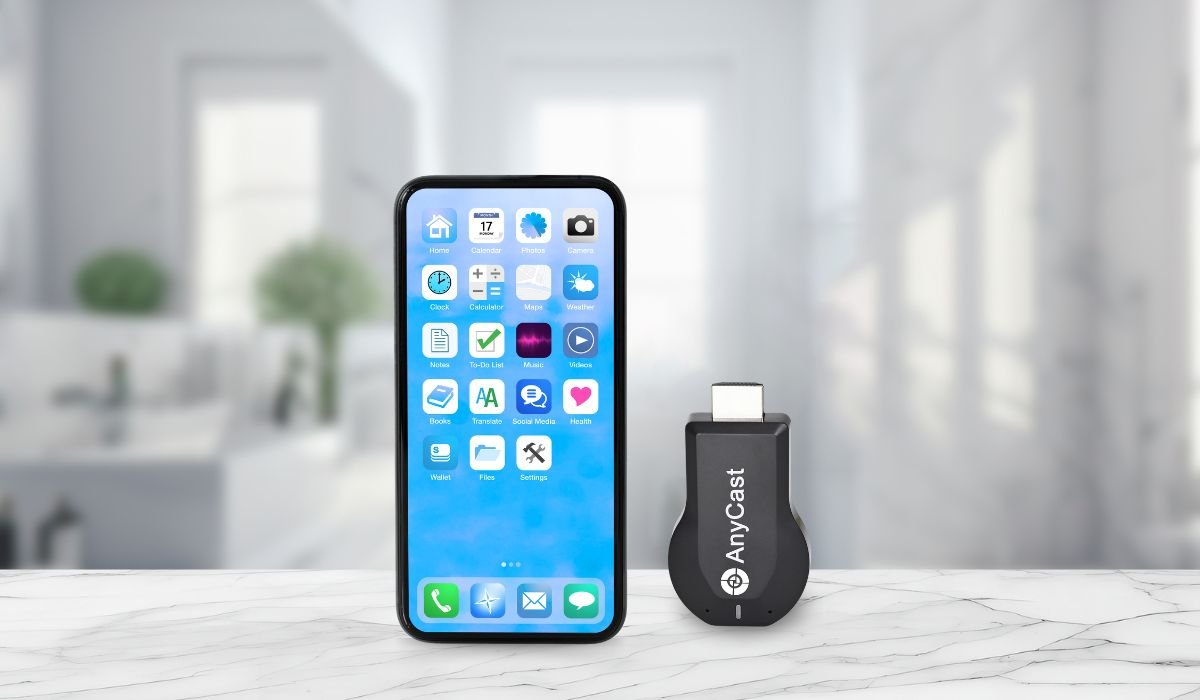
Connecting Anycast to your Android device is a simple way to mirror your phone’s screen onto a larger display. Anycast, a wireless display dongle, lets you stream videos, play games, or present work on your TV.
Whether you want to enjoy movies on a bigger screen or share presentations wirelessly, Anycast offers a seamless solution. It works by mirroring your Android device, giving you full control of what’s shown on the connected display.
In this guide, you’ll learn step-by-step how to set up and connect Anycast to your Android device, making it easy for anyone to get started.
Can You Connect Anycast to Your Android Device?
Yes, you can easily connect Anycast to your Android device. Simply plug the Anycast dongle into your TV’s HDMI port, switch to Miracast mode, and enable the Cast or Wireless Display option on your Android. Your screen will be mirrored on the TV in just a few steps!
Understanding Anycast
What is Anycast?
Anycast is a small wireless display dongle that connects your Android device to a larger screen, like a TV or projector. Its main purpose is to mirror your phone’s display, allowing you to share content like videos, photos, and presentations wirelessly. No need for cables—just plug it into the HDMI port and you’re ready to go.
How Does Anycast Work?
Anycast uses Miracast or DLNA technology to wirelessly project your Android screen onto a TV. Miracast is a peer-to-peer system that works over Wi-Fi, meaning your Android device and the dongle communicate directly. DLNA helps stream content like videos and music from your phone to the TV.
It’s compatible with most Android devices, making it a great option for easy screen mirroring. Just switch your Anycast to Miracast mode, and your Android can mirror its screen instantly.
Also read: How to Block Private Calls on Android: A Comprehensive Guide
Preparing to Connect Anycast
Check Device Compatibility
Before connecting Anycast, make sure your Android device supports screen mirroring. Most devices running Android 4.2 and above come with built-in Miracast support, so if your phone or tablet meets this, you’re good to go.
Additionally, ensure that your TV or display has an HDMI port. This is where the Anycast dongle will plug in to connect with your Android device.
Unboxing Anycast: What’s Included
When you unbox your Anycast, you’ll find the dongle itself, which plugs into the TV’s HDMI port. Along with it, you’ll have a USB cable that powers the device, which can be connected to a USB port on your TV or to an external adapter.
Steps to Connect Anycast to Your Android Device
Plug in the Anycast Dongle
- Connect the Anycast to the TV’s HDMI port. Find an available HDMI port on your TV and insert the Anycast dongle.
- Power it up by plugging the USB cable into either a USB port on your TV or an external power adapter. This provides the necessary power for the dongle to operate.
- Use your TV remote to switch the input source to the correct HDMI input where the Anycast is connected.
Switch to Miracast Mode on Anycast
The Anycast dongle has two modes: DLNA and Miracast. To switch between these, use the small button on the dongle itself.
- Select “Miracast” mode, as this is required for Android screen mirroring.
- You’ll know you’re in the correct mode when your TV displays the Anycast Miracast interface.
Enable Wireless Display on Android
- On your Android device, go to Settings > Connected Devices > Cast.
- Depending on your Android version, you may find it under Settings > Display > Cast Screen or Settings > Wireless & Networks > More > Wireless Display.
- Turn on the “Wireless Display” or “Cast” option to start searching for nearby devices.
Find and Connect to Anycast
- Your Android device will start scanning for available devices. Look for the Anycast dongle, which usually appears as “Anycast-XXXX”.
- Select it to connect.
- Once connected, your Android screen will be mirrored on the TV, allowing you to view everything on the larger display.
These simple steps will have you streaming content from your Android device to your TV in no time!
Also read: What Does LTE Mean on Android Phone: A Complete Guide
Alternative Uses for Anycast with Android Devices
Streaming Media
One of the most popular uses for Anycast is streaming media. You can easily stream movies, videos, and music from your Android device to a larger screen. Simply connect Anycast, mirror your screen, and open your favorite streaming app. Whether it’s YouTube, Netflix, or Spotify, you can enjoy content directly from your phone, projected onto your TV or monitor, with no wires needed.
Presentations and Work
Anycast is also a handy tool for business presentations or school projects. Instead of dealing with complicated cables or projectors, just plug in Anycast and mirror your Android device. This allows you to display slideshows, documents, or spreadsheets directly on the big screen, making it a practical solution for meetings, workshops, or classrooms.
These alternative uses make Anycast a versatile tool for both entertainment and productivity, enhancing the value of your Android device.
Troubleshooting Common Connection Issues
No Display on TV
If there’s no display on the TV:
- Double-check that you’ve selected the correct HDMI input on the TV using the remote.
- Make sure the Anycast dongle is powered properly. Verify the USB cable is connected securely to the power source.
Can’t Find Anycast on Android
If your Android device can’t detect Anycast:
- Ensure that Wi-Fi and Wireless Display (or Cast) are enabled on your Android phone.
- Try restarting both your Android device and the Anycast dongle. Sometimes a quick reset helps re-establish the connection.
Lagging or Stuttering Connection
If the connection is laggy:
- Close unnecessary background apps on your Android device to free up resources.
- Reduce the distance between your Android device and the Anycast dongle. Keeping them closer together can help improve the connection stability.
These troubleshooting tips should help resolve most common issues when connecting Anycast to your Android device.
Also read: How to Turn Off Battery Saver on Android
Tips for Optimal Performance
Use a Strong Wi-Fi Connection
For the best experience, ensure your device is connected to a strong and stable Wi-Fi network. A weak connection can cause interruptions in streaming or mirroring.
Reduce Interference
Try to minimize the number of devices connected to the same Wi-Fi network, as this can reduce network congestion and improve performance. Also, keeping the dongle away from other wireless devices may help reduce interference.
Keep Your Android Device Charged
Screen mirroring can be battery-intensive, so it’s a good idea to keep your phone plugged in or ensure it has a full charge to avoid interruptions during use.
Adjust Screen Resolution
If you experience lag or stuttering, try lowering the screen resolution on your Android device. This can help reduce the load on both the dongle and the network.
By following these tips, you can ensure a smooth and seamless experience when using Anycast with your Android device.
Conclusion
Connecting Anycast to your Android device is a simple and effective way to mirror your phone’s screen onto a larger display. Whether you’re streaming movies, sharing presentations, or simply enjoying content on a bigger screen, the process is straightforward.
Feel free to experiment with the mirroring feature for entertainment, work, or learning. It’s a versatile tool that can enhance your experience in various ways.
If you encounter any issues, remember the troubleshooting tips we’ve covered, such as ensuring proper connections and reducing interference. And, if Anycast doesn’t meet your needs, consider alternatives like Chromecast for a similar experience.
With these steps, you’ll have no trouble making the most of your Android device and Anycast connection!
FAQs
Can I use Anycast without Wi-Fi?
Yes, Anycast can work without Wi-Fi by using Miracast mode. It creates a direct connection between your Android device and the dongle, allowing screen mirroring without the need for an internet connection.
Is Anycast compatible with Android 5.0 or lower?
Anycast works best with Android 4.2 and above, but devices running Android 5.0 or lower may not fully support the screen mirroring feature. Check your device’s compatibility before using it.
How to mirror games or videos without lag?
To reduce lag, ensure a strong Wi-Fi connection, close unnecessary apps on your Android device, and keep the Anycast dongle and phone in close proximity for a better signal.
Does Anycast support HD streaming?
Yes, Anycast supports 1080p HD streaming, allowing you to mirror videos, movies, and presentations in high definition, as long as your source content and display device support HD quality.
Can I use Anycast for business presentations?
Absolutely! Anycast is great for business presentations. Simply connect your Android device to the dongle, mirror your screen, and display slides or documents on a larger screen for meetings or workshops.
How do I switch between Miracast and DLNA modes on Anycast?
Use the mode button on the Anycast dongle to switch between Miracast (for screen mirroring) and DLNA (for streaming content) modes, depending on your needs.


